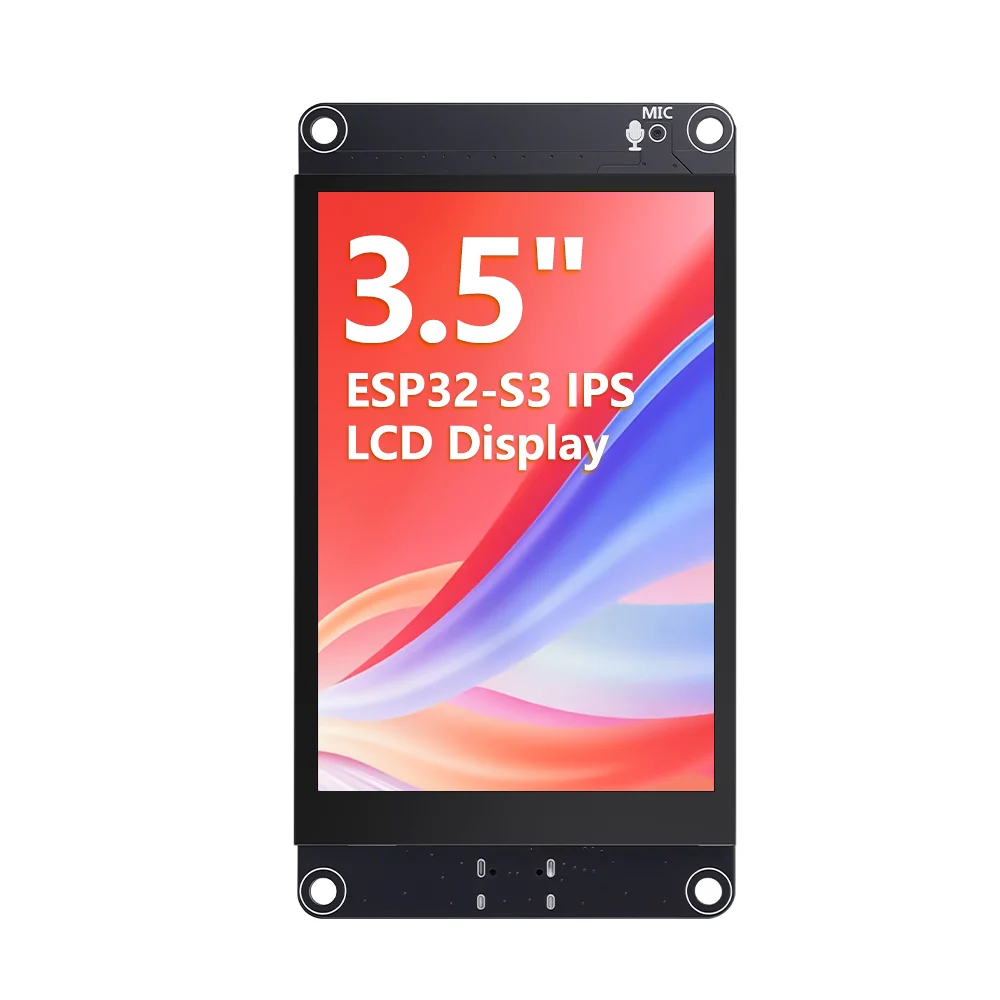
3.5 ESP32-S3 Display with 320x480 Capacitive IPS Touch Panel | With Speaker/Mic/BAT Interface | Supports AI Voice Chat
Description of Hardware Interface Functions
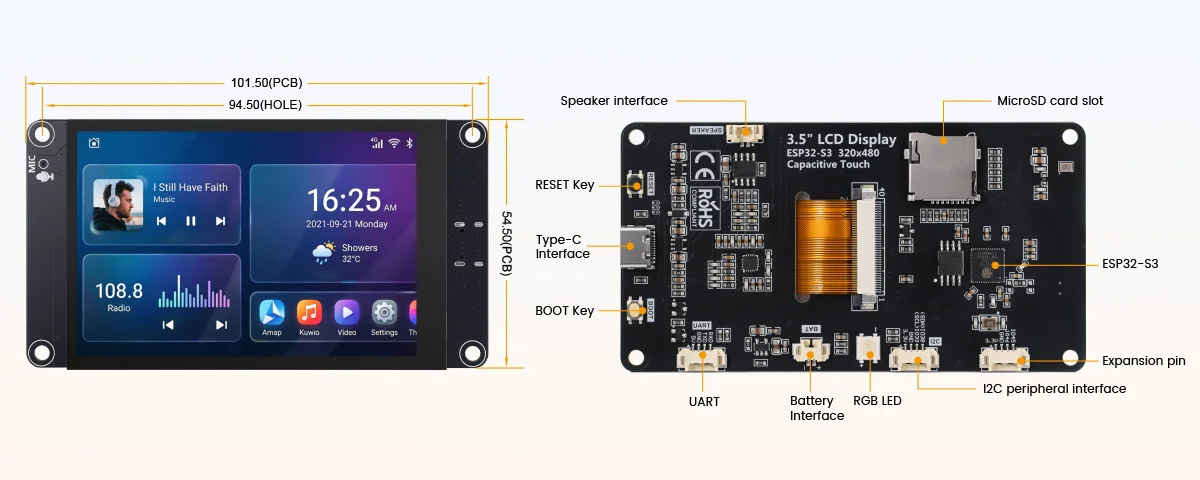
Interface Function Description
| Interface name | Function Description |
|---|---|
| ESP32-S3 | Main control of the display module, working together with the peripheral circuit, is used to control on-board peripherals and external peripherals. |
| MicroSD card slot | Insert a SD card to expand storage space, such as storing large data content such as font libraries, images, audio files, etc. |
| RGB tricolor light | Contains LEDs of three colors: red, green, blue. It has a built-in control IC and only needs one IO port to control. It can be used for LED testing and status indication. |
| Serial port | 1.25mm4P socket. It can be used for serial port debugging, downloading, and communication. An external USB to serial port module is required. |
| Battery interface | 1.25mm 2P socket. Used to connect to a 3.7V polymer lithium battery, charge the battery through the battery management circuit, and can also be used for battery power supply. Note the positive and negative terminals of the interface. |
| BOOT button | Used to enter the download mode or key test. Press and this key to power up, then release to enter the download mode, or after powering up, press and hold this key, then press the RESET key, release the RES key and then release this key, you can also enter the download mode. When you don't need to enter the download mode, this key can be used as a normal key |
| TYPE-C interface | It is used for module power supply and program download, debugging. This interface is connected to the internal USB bus of ESP32-S3, which can generate a USB serial port. Note: win10 and above systems support USB virtual serial port function. If you use this interface on other versions of the system, you need to solve the problem USB virtual serial port not working by yourself. |
| RESET button | For ESP32-S3 main control and LCD reset, press to reset low level. |
| Expansion pin | 1.25mm 4P socket. Two pins are GPIO45, GPIO46. It can be used to connect other peripherals. |
| Loudspeaker interface | 1.25mm P socket. Used to connect the speaker to play audio. Used to connect the speaker to play audio (maximum support 1.5W (8Ω) or 2W4Ω) speaker). |
| I2C peripheral interface | Downward-facing MEMS silicon microphone. Used to capture external sound. Can be used for those projects that require audio input function. |
ESP32 Pin Assignment
| Device | ESP32-S3 pin | pin allocation |
|---|---|---|
| LCD | IO10 | LCD screen chip select control signal, low level active |
| IO12 | LCD QSPI bus clock signal | |
| IO11 | LCD QSPI data bus D0 | |
| IO13 | LCD QSPI data bus D1 | |
| IO14 | LCD QSPI data bus D2 | |
| IO9 | LCD QSPI data bus D3 | |
| EN | LCD screen reset control signal, low level reset (share reset pin with ESP32-S3 main control) | |
| IO41 | LCD screen backlight control signal ( level turn on backlight, low level turn off backlight) | |
| Capacitive touch screen | IO38 | Capacitive touch screen I2C bus data signal (share with audio codec IC and extended I2C) |
| IO39 | Capacitive touch screen I2C bus clock signal (share with audio codec IC and extended I2C) | |
| IO48 | Capacitive touch screen reset control signal, low level | |
| IO47 | Capacitive touch screen interrupt input signal, input low level when touch event occurs. | |
| RGB light | IO40 | RGB three-color LED light control signal with built-in control IC. Different timing can be input to control the internal red, green and blue three kinds of beads respectively. |
| MicroSD | IO5 | SD card SDIO bus clock signal |
| IO4 | SD card SDIO bus command signal | |
| IO6/7/⅔ | SD SDIO bus data signal DATA0~DATA3 | |
| Audio | IO1 | Audio power amplifier IC enable pin, low level enable |
| IO17 | Audio I2S bus master clock signal | |
| IO18 | Audio I2S bus bit clock signal | |
| IO15 | Audio I2S bus bit output data signal | |
| IO21 | Audio I2S bus left and right channel selection signal. High level: right channel; low level: left channel | |
| IO16 | I2S bus bit input data signal | |
| IO38 | Audio codec IC's I2C bus data signal (share with capacitive touch screen and extended I2C) | |
| IO39 | Audio codec's I2C bus clock signal (share with capacitive touch screen and extended I2C) | |
| Button | IO0 | Download mode selection button (hold this button to power up, then release enter download mode) |
| EN | ESP32-S3 reset button, low level reset (share with LCD screen reset) | |
| Serial por | RXD0(IO43) | ESP32-S3 serial port 0 receive signal interface (if the serial port communication function is not used, it can be used as a IO port) |
| TXD0(IO44) | ESP32-S3 serial port 0 receive signal interface (if the serial port communication function is not used, it can be used as a general port) | |
| Battery | IO8 | Battery voltage ADC value acquisition input signal |
| Expansion pin | IO45 | ports that can be used to connect peripherals |
| IO46 | ports that can be used to connect peripherals | ports that can be used to connect peripherals |
| GND | GND | |
| VCC | 3.3V | |
| I2C peripheral interface | IO38 | Expansion interface I2C bus data signal (shared with capacitive touch screen and audio codec IC, can be used a general IO when touch and audio functions are not used, otherwise it can only be used as an I2C interface) |
| IO39 | Expansion interface I2C bus clock signal ( with capacitive touch screen and audio codec IC, can be used as a general IO when touch and audio functions are not used, otherwise it can only be used as an I2C interface) |
Get Started with Arduino IDE
Please click the card below to learn how to install Arduino IDE, and install ESP32 board in the Arduino IDE.

Note: ESP32 version 3.0 is based on ESP32 IDF 5.1, while version 2.0 is based on ESP32 IDF 4.4. The two versions have differences in their software APIs for Bluetooth, timers, I2S drivers, LEDC drivers, and other features. Therefore, if you compile the version 2.0 examples using version 3.0, errors will occur. Please pay attention to the version selection. The installation may take a long time, and download failures may occur during the process; you may need to try installing it several times. The downloaded installation package is saved in the “C:\Users\Administrator\AppData\Local\rduinol5\staging\packages” directory(where “Administrator” is the actual username of your computer; the ‘AppData’ directory is hidden. To access it, go to the Folder menu, select Tools > Folder Options, check “Show hidden files, folders, and drives,” and click OK to save the settings).
The download settings are as follows:
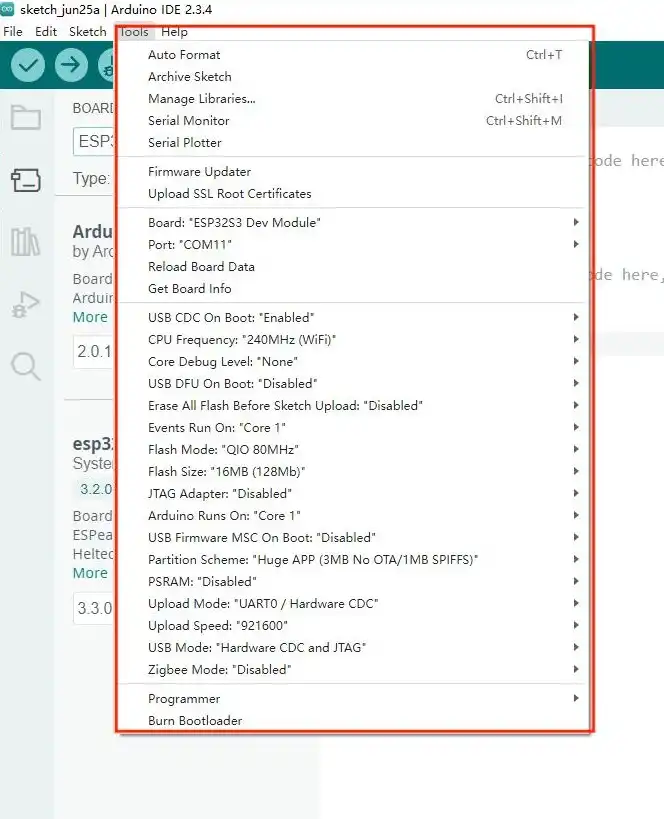
Here are the configuration parameters:
Port: Select the serial port to which the ESP32 development board is connected. Usually, it is automatically detected.
USB CDC On Boot: Enable switch for USB virtual serial port (USB-Serial-JTAG mode) output. Select "Enabled" to enable the serial port function, or "Disabled" to disable it. If your development board does not have a USB-to-serial function, it is recommended to enable this feature.
Note: USB virtual serial port is only supported on Windows 10 and later.
CPU Frequency: CPU clock frequency. Options: 240MHz (WiFi), 160MHz (WiFi), 80MHz (WiFi), 40MHz, 20MHz, 10MHz. Generally, higher frequency consumes more power. Choose according to your needs. If power consumption is not a concern, select the maximum 240MHz for best performance. Note that 240MHz, 160MHz, and 80MHz ensure normal WiFi and BT operation; other frequencies may not guarantee WiFi/BT functionality, only basic CPU operations.
Core Debug Level: Arduino kernel debug log level, output via serial port. Options: None, Error, Warn, Info, Debug, Verbose.
- None: No debug logs output.
- Error: Only error-level logs.
- Warn: Only warning and above.
- Info: Only info and above.
- Debug: Only debug and above.
- Verbose: All kernel debug logs.
Generally, you don’t need to pay attention to kernel debug logs unless developing kernel-related features. So select "None".
USB DFU On Boot: Configure whether to upgrade device firmware via USB during boot. Select "Enabled" (requires "USB-OTG" mode) or "Disabled" to turn off.
Erase All Flash Before Sketch Upload: Configure whether to fully erase the entire Flash before uploading code. Options: Disabled, Enabled. Select "Disabled" to avoid full erasure (faster upload and longer Flash lifespan). Select "Enabled" for full erase (slower upload and reduces Flash lifespan). So choose "Disabled".
Event Runs On: Configure which ESP32 core runs Arduino interrupt events. Options: Core0, Core1. Choose according to your needs. Default is Core1.
This can be the same as or different from ArduinoRunsOn. Same core reduces power consumption; different cores improve program efficiency.
Flash Mode: Communication mode and frequency of the Flash mounted on the ESP32. Options: QIO 80MHz, QIO 120MHz, DIO 80MHz, OPI 80MHz.
- QIO: uses 4 SPI data lines for Flash write/read.
- DIO: uses 2 SPI data lines.
- OPI: uses 8 SPI data lines.
Choose based on actual Flash connection. Here we use 4 lines, so select "QIO".
Flash Size: Capacity of the Flash mounted on the ESP32. Options: 4MB (32Mb), 8MB (64Mb), 16MB (128Mb), 32MB (256Mb). Choose according to actual capacity. Here the Flash is 16MB, so select "16MB (32Mb)".
JTAG Adapter: Configure JTAG adapter. Options: Disabled, integrated USB JTAG, FTDI Adapter, ESP USB Bridge. Using JTAG makes debugging easier. Choose as needed. Default is "Disabled".
Arduino Runs On: Configure which ESP32 core runs Arduino Core task code. Options: Core0, Core1. ESP32 has two cores (Core0 and Core1), each can run different tasks. Choose as needed. Default is Core1.
USB Firmware SVC On Boot: Configure another USB firmware upgrade method. When enabled, a removable storage drive appears on your computer, and you can drag firmware directly to it for upgrade. Select "Enabled" (requires "USB-OTG" mode) or "Disabled".
Partition Scheme: Flash space partitioning method on the ESP32. Arduino IDE provides dozens of schemes. Here, with 16MB Flash, generally choose "16MB flash (2MB APP/12.5MB FATFS)". If your project has many files and the compiled binary is large, you can choose "16MB flash (3MB APP/9.9MB FATFS)".
PSRAM: Configure external PSRAM on the ESP32. Options: Disabled, QSPI PSRAM, OPI PSRAM. Some ESP32 boards have external PSRAM for memory expansion; select accordingly. If only internal SRAM is present, select "Disabled". Here the ESP32 has 8-line PSRAM, so choose "OPI PSRAM".
Upload Mode: Configure code upload interface. Options: UART0/Hardware CDC, USB-OTG CDC (TinyUSB).
- UART0/Hardware CDC: use onboard USB-to-serial or USB virtual serial port to upload code.
- USB-OTG CDC (TinyUSB): use software-emulated USB hardware interface to upload code.
Here we use USB virtual serial port, so select "UART0/Hardware CDC".
Upload Speed: Code upload speed. Options: 51200, 230400, 256000, 115200, 921600. Choose based on the maximum speed supported by the onboard USB-to-serial chip. For example, the CH340C used here supports up to 2Mbps, so select the maximum 921600.
USB Mode: Configure USB interface mode. Options: Hardware CDC and JTAG, USB-OTG (TinyUSB).
- Hardware CDC and JTAG: use USB virtual serial port and JTAG debugging.
- USB-OTG (TinyUSB): use software-emulated USB hardware interface. This mode only needs to be configured when using USB OTG mode.
Note: When using USB Mode, you must connect to the device’s built-in USB interface, not the onboard USB-to-serial port.
Zigbee Mode: Configure Zigbee operation mode. Options: Disabled, Zigbee ZCZR.
- Disabled: turn off Zigbee function.
- Zigbee ZCZR: enable Zigbee function.
Zigbee is not used here, so select "Disabled".
Resources
3.5 inch_ESP32-S3-TN-Resources
This link contains all the information related to the screen, including various manuals, schematics, diagrams, sample programs, and more.
Where to Buy
Please visit this page to purchase 3.5 inch ESP32-S3 Touch Display.
Support
If you encounter any issues while using the service, you can contact us via the social media links in the bottom-right corner of elecrow or send an email to techsupport@elecrow.com for technical support.